Encrypted Email Setup for Windows Outlook
- Open Microsoft Outlook
- Click the Tools menu, and select E-mail Accounts...
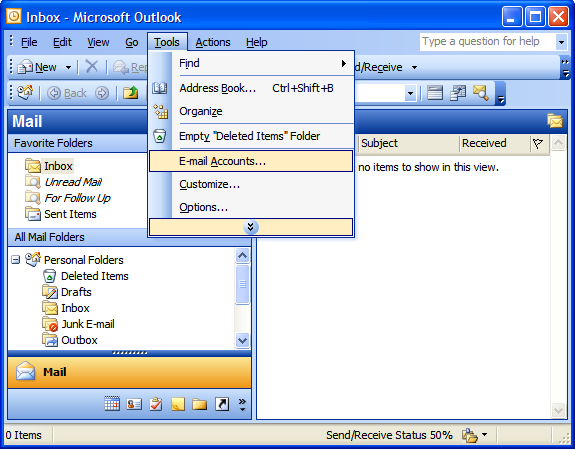
- Click Add a new e-mail account, then click Next.
- Choose POP3 as your server type by clicking the radio button, and click Next.
- Fill in all necessary fields to include the following information:
- User Information
-
Your Name: Enter your name as you would like it to appear in the From: field of outgoing messages.
Email Address: Enter your full email address (including @your_domain).
- Server Information
-
Incoming mail server (POP3): mail.hotgraphics.com.au
Outgoing mail server (SMTP): mail.hotgraphics.com.au
Please note that this host is on the hotgraphics.com.au domain to avoid any SSL Certificate errors. - Login Information
-
User Name: Enter your full email address (including @your_domain)
Password: Enter your email password.
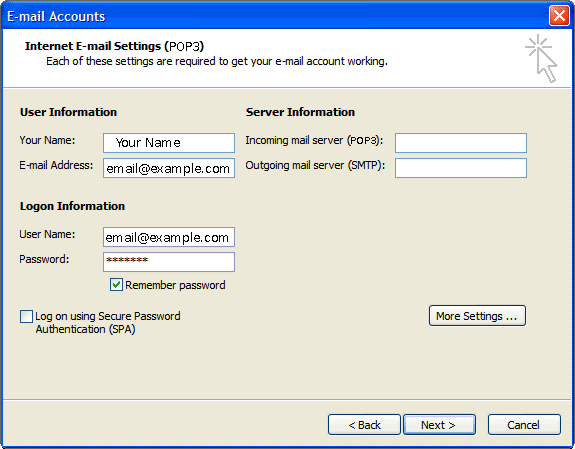
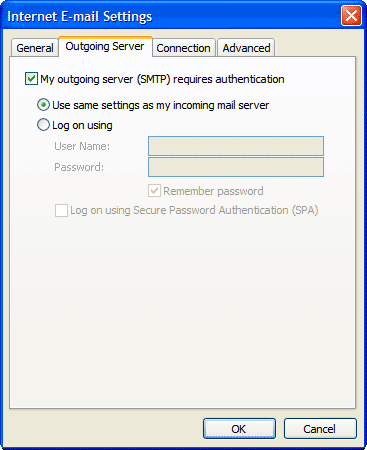
- Click More Settings... and then click the Outgoing Server tab.
- Check the box next to 'My outgoing server (SMTP) requires authentication' and select Use same settings as my incoming mail server.
- Click the Advanced tab, and check the box next to 'This server requires an encrypted connection (SSL)' under Incoming Server (IMAP). Also, enter 995 in the Incoming server (POP3) box.
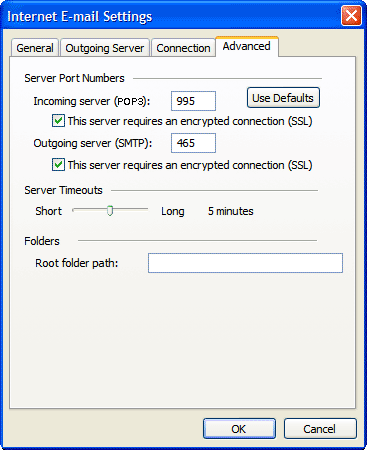
- Check the box next to 'This server requires an encrypted connection (SSL)' under Outgoing Server (SMTP), and enter 465 in the Outgoing server (SMTP) box.
- Click OK.
- Click Next, and then click Finish.