Encrypted Email Setup for Thunderbird
- Open Mozilla Thunderbird
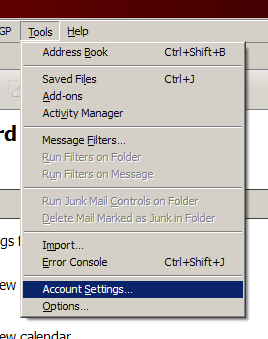
- Click the Tools menu, and select Account Settings....
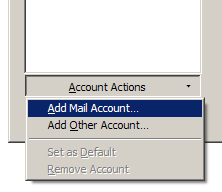
- Select Add Mail Account... from the drop down list located under the account list of the left.
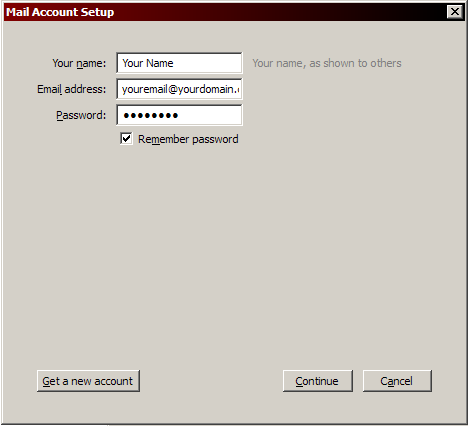
- The first dialog in Thunderbird's Automatic Account Configuration will be displayed. Enter your name, your email address, and your password. Click Continue
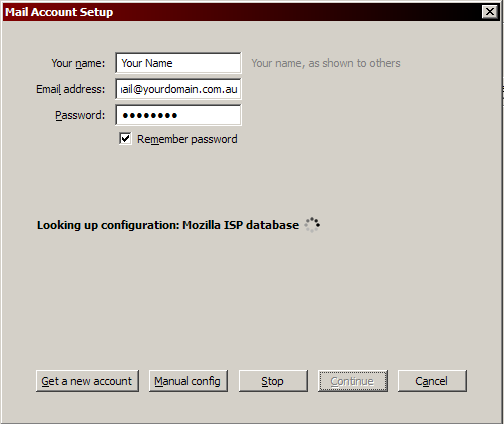
- Thunderbird will attempt to query the automatic settings, but will get them wrong. Before it comes up with an answer, click on Manual config down the bottom.
- Once the manual entry has been enabled, please enter:
- Incoming
-
- Set server type to POP3 instead of IMAP.
- Set Server hostname to mail.hotgraphics.com.au
- Set Port to 110
- Set SSL to STARTTLS
- Set Authentication to Normal password
- Outgoing
-
- Set Server hostname to mail.hotgraphics.com.au
- Set Port to 587
- Set SSL to STARTTLS
- Set Authentication to Normal password
- Username
-
Set username to your full email address. eg youremail@example.com.au
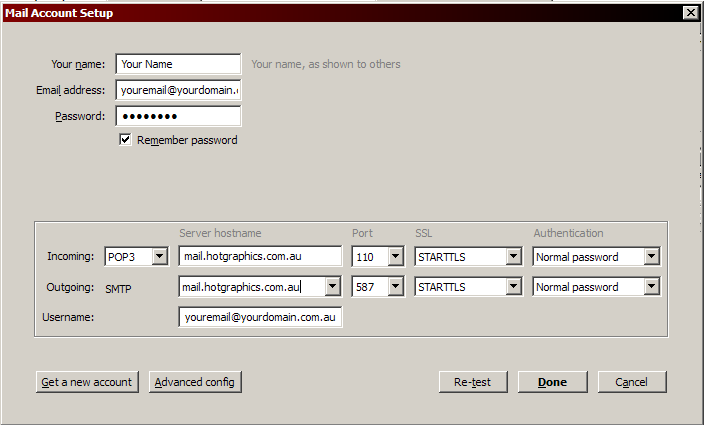
- Click Done. This will confirm the settings are correct before returning to the Account settings list.
- Click Ok.
File Attachments:
| Attachment | Size |
|---|---|
 thunderbird-auto-config.png thunderbird-auto-config.png | 8.24 KB |
| thunderbird-add-mail-account.png | 4.62 KB |
| thunderbird-tools-accounts.png | 11.54 KB |
| thunderbird-click-manual.png | 11.26 KB |
| thunderbird-enc-account-info.png | 16.6 KB |